
Configuring OneLogin Identity provider

If your organization uses OneLogin Identity Provider (IdP) for user authentication, you can configure SAML Service provider to allow your users to log in to your ConcreteCMS website using their IdP OneLogin credentials.
Configuration for SAML must be done in two places: at the IdP ( OneLogin ) and at the SP (Our SAML Service provider package) . In the next sub-chapters, we'll provide guidelines for a basic configuration of Keycloak IdP and how to set up it as your identity provider .
These steps reflect a third-party application and are subject to change without our knowledge. If the steps described here do not match the screens you see in your IdP account, you can use the general SAML configuration steps, along with the OneLogin IdP’s documentation ( https://developers.onelogin.com/ ) .
This document assumes that you've already created an account with your selected Identity Provider.
1) Add our Service provider informations to OneLogin
The next step enables you to retrieve the information OneLogin needs to work with our SAML Service provider .
Go to " Dashboard > SAML Service Provider > Configuration and Settings " page in our package .
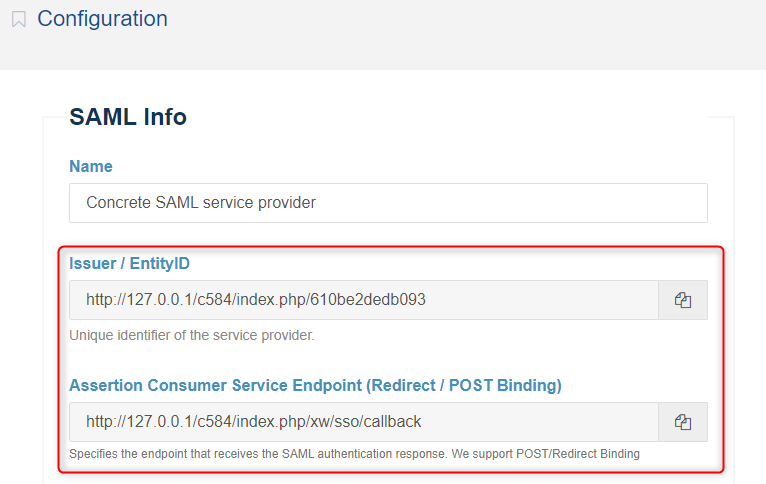
In the next step, you will need the following information before heading back to the Configuration of OneLogin :
-
Issuer / EntityId
-
Assertion Consumer Service Endpoint
2) Setup OneLogin IdP
Follow the steps below to configure OneLogin as an Identity Provider :
Log in to your OneLogin admin portal.
Select Dashboard > Applications in the top menu and select Add App .
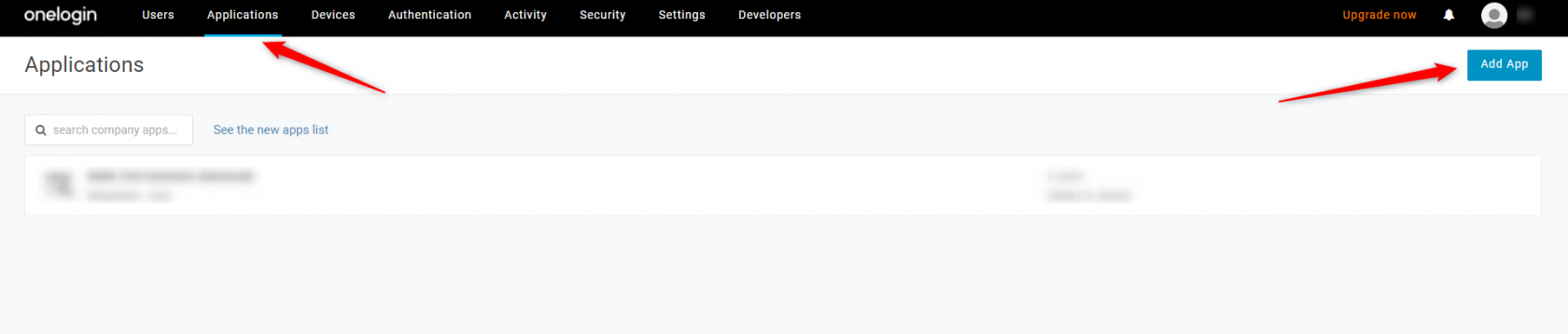
Search for SAML, and select SAML Test Connector(Advanced) .
Enter your display name and click Save .
Navigate to the Configuration tab .
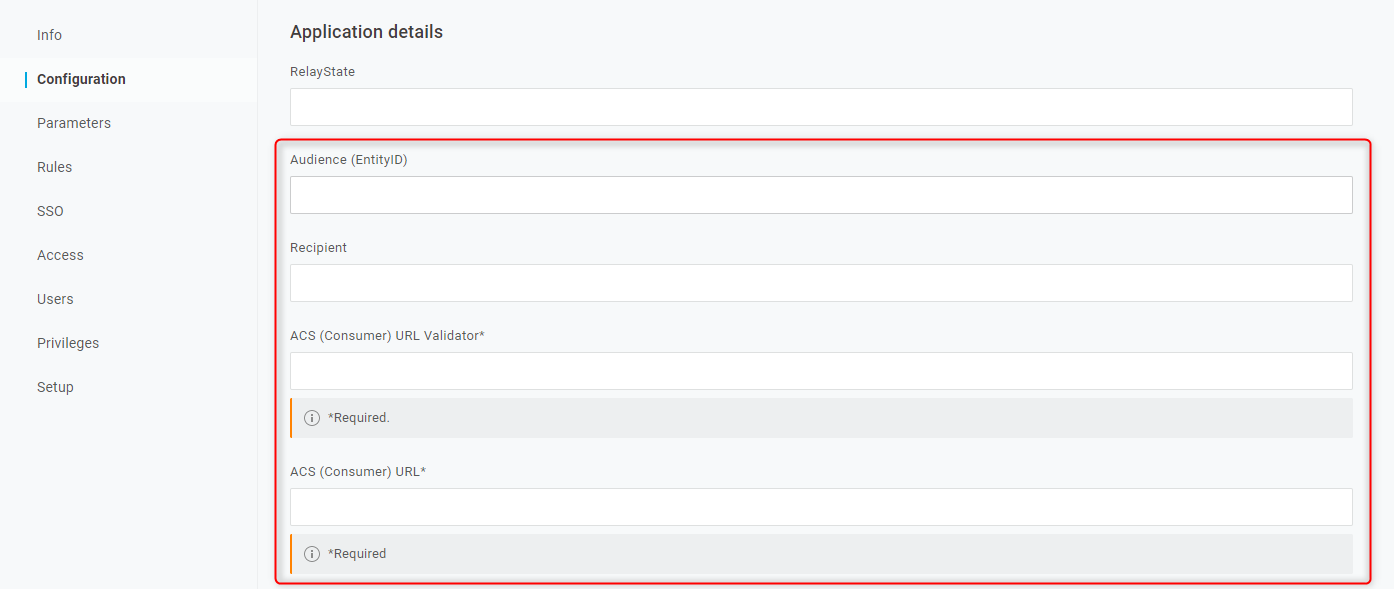
| OneLogin Audience | Our Issuer / EntityId from Step1 |
| OneLogin Recipient | Our Assertion Consumer Service Endpoint from Step1 |
| OneLogin ACS (Consumer) URL Validator | Our Assertion Consumer Service Endpoint from Step1 |
| OneLogin ACS (Consumer) URL | Our Assertion Consumer Service Endpoint from Step1 |
Click Save .
In the next step, you will need the following OneLogin IdP information before heading to the configuration of our SAML Service provider :
-
Issuer URL
-
Endpoint (HTTP)
- X.509 Certificate
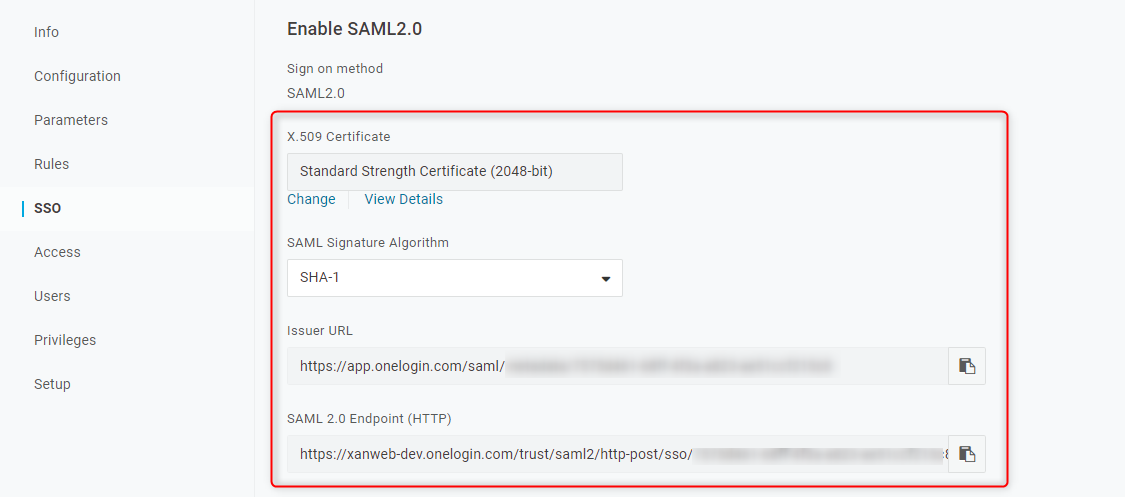
Or you can download an XML Metafile file of OneLogin IdP SAML configuration , on the same last page just go to More Actions → SAML Metadata and choose SAML Metadata
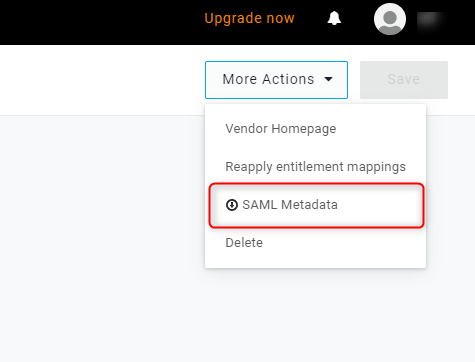
3) Add OneLogin IdP informations Into our SAML Service provider
Go back to our SAML Service provider package and go to " Dashboard > SAML Service Provider > Identity providers " page
and select OneLogin IdP from list shown .
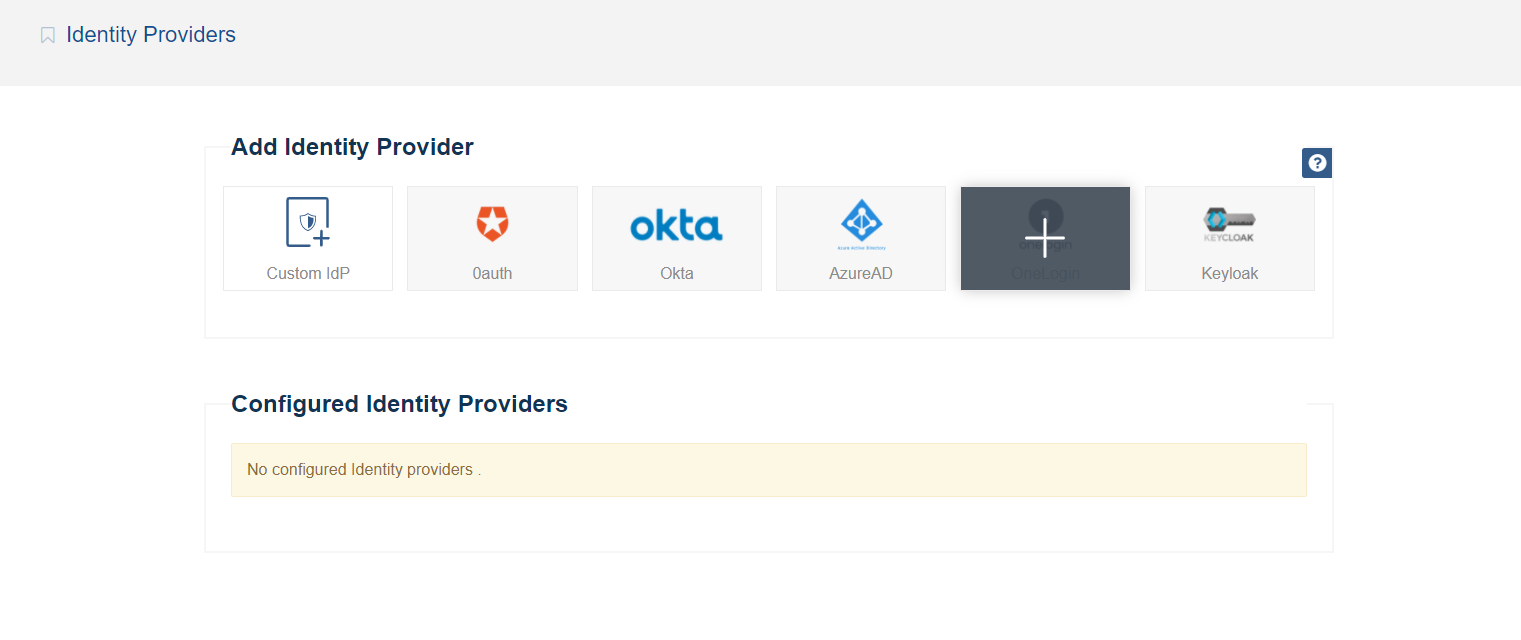
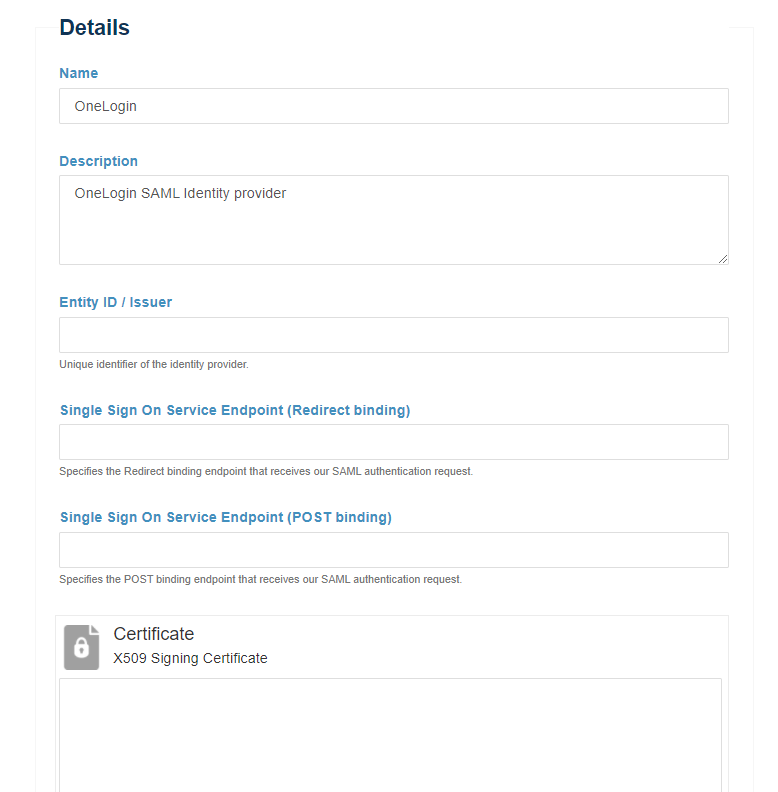
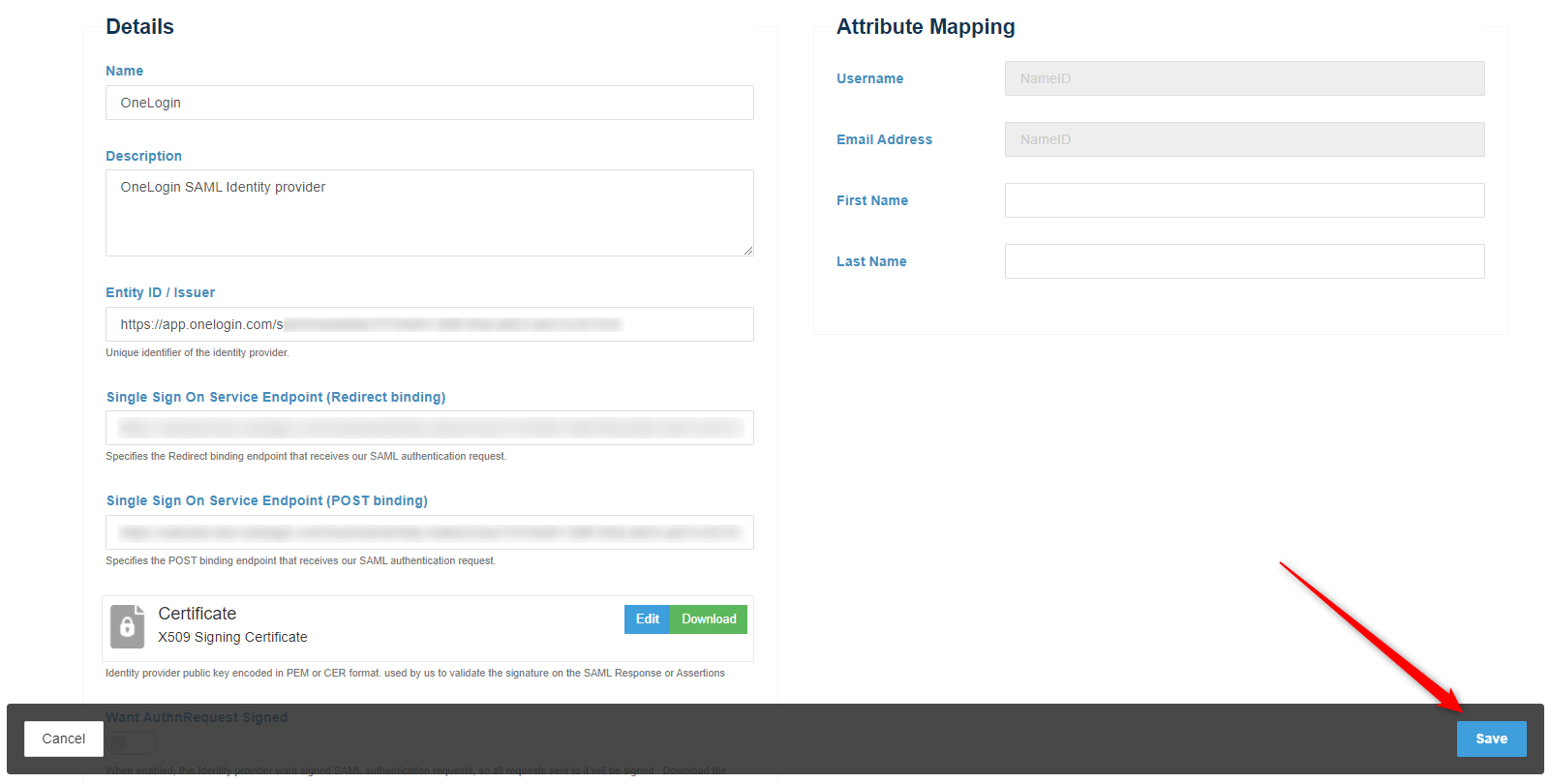
Add this values respectfully .
| Issuer / EntityID | OneLogin Issuer URL |
| Single Sign On Service Endpoint (POST binding) | OneLogin SAML 2.0 Endpoint (HTTP) |
|
Certificate |
OneLogin X.509 Certificate (visible under 'View details' blue link) |
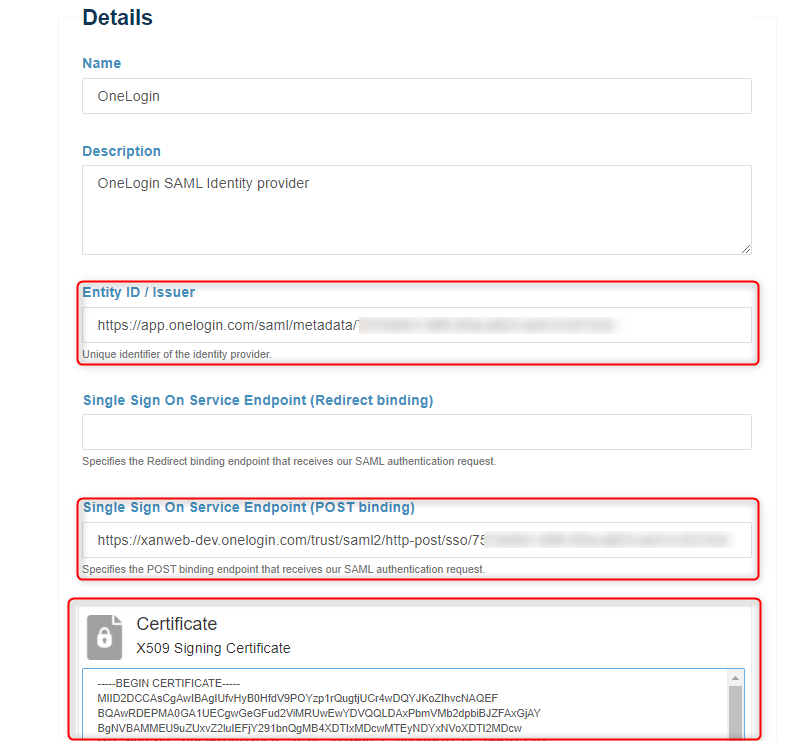
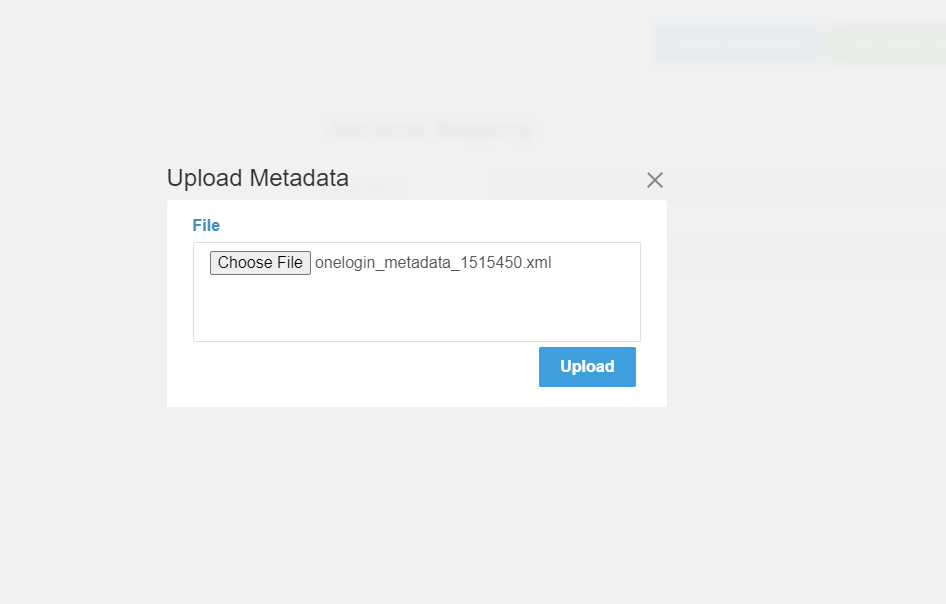
Or you can do the last step by importing Metadata file, the last XML Metadata file contains all the information requested in following sections. If you have this file, you can click in Import Metadata button . And you can now upload it . Select that file and click in Upload button, and the system will parse it to populate the required fields in following sections.
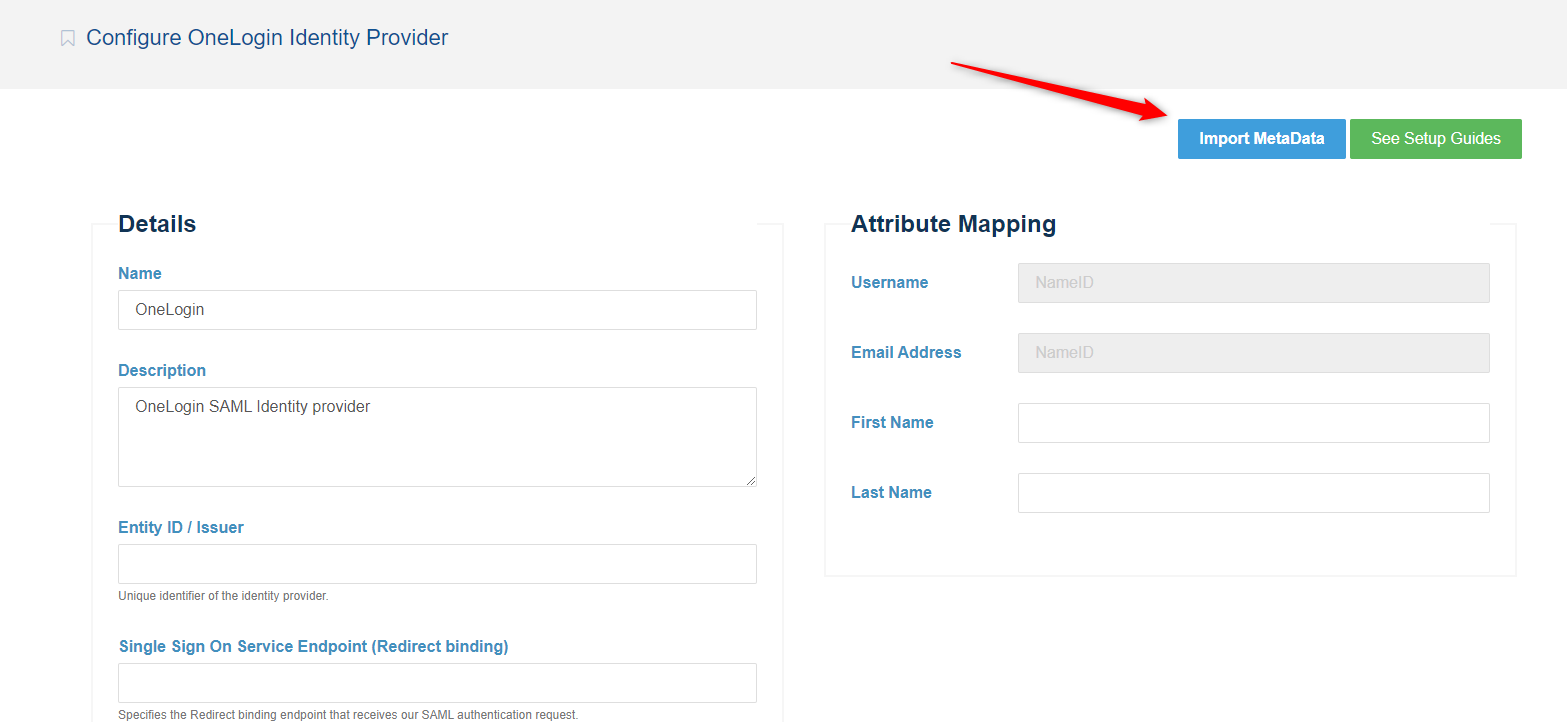
Click on Save
Your configured IdP will be shown in " Dashboard > SAML Service Provider > Identity providers " page .
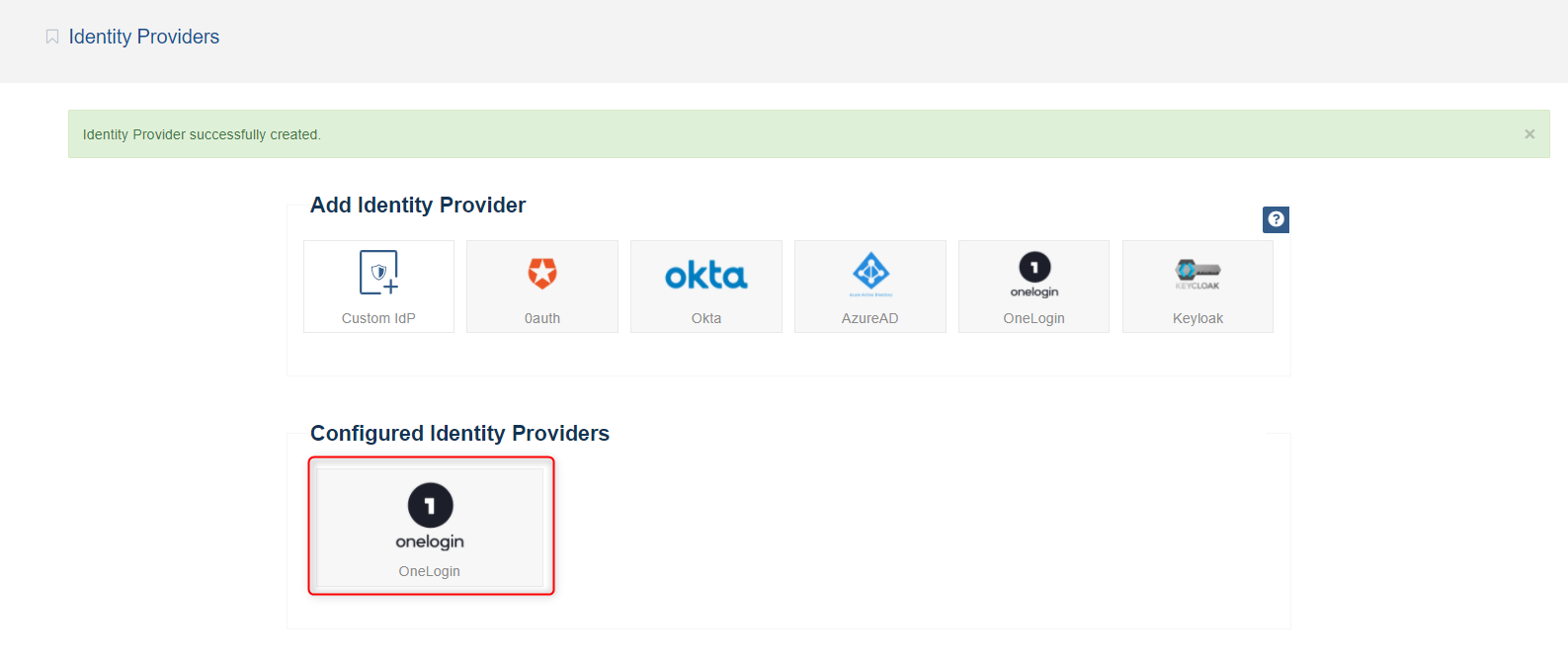
And at this point, you have successfully configured OneLogin as an Identity provider in the system .
If you have some wrong inputs in previous step , you can edit your configured identity providers by clicking it .
Go to " Dashboard > SAML Service Provider > Configuration and Settings " page .
In Settings section, select your configured Identity provider ( OneLogin ) (from step above) appeared in the configured IdPs list .
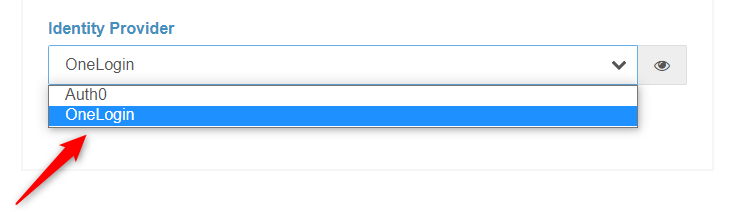
Click on Save .
Finaly, you must check your settings in Settings and Appearance sections in the same page .
Activate the system to show your End Users the Login form .
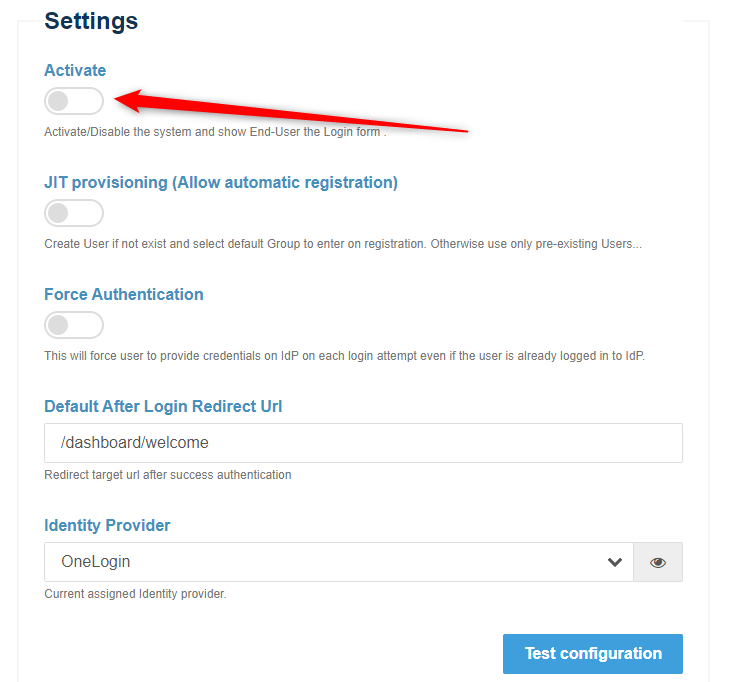
Click on Save .
You should now able to see a ‘SAML’ option in the ConcreteCMS login screen . This will redirect users to login to the OneLogin instance for their username/password and will create a new ConcreteCMS user account with chosen group (If JIT provisioning is enabled) .
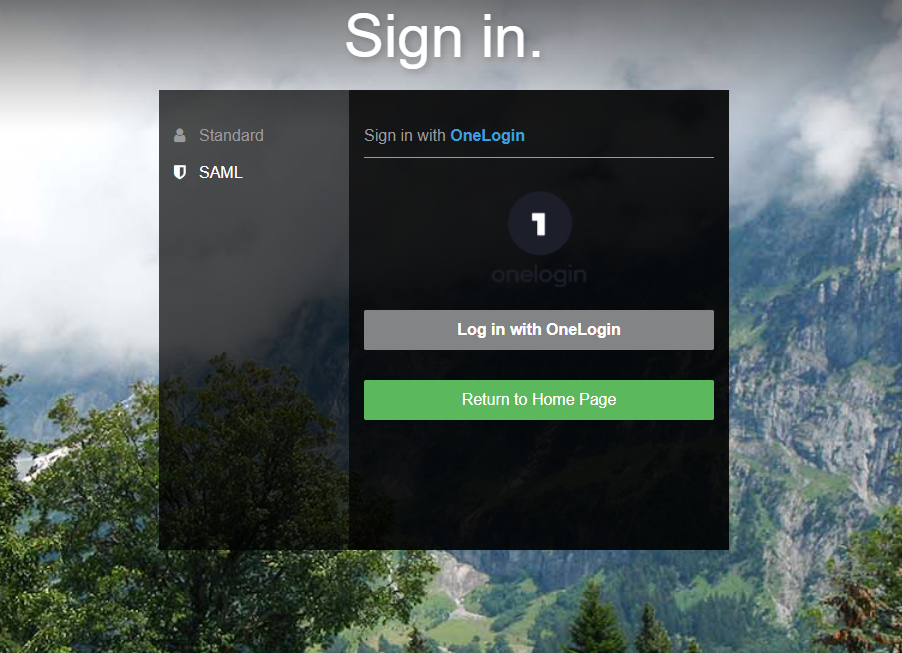
For a better understanding and more advanced configuration please check out the official OneLogin documentation. Also please refer to previous pages in this documentation.
If you are experiencing issues while testing the connection to the OneLogin server, first double-check the configuration options in SAML Service provider package and in Idp ( OneLogin ) side . Also check Troubleshooting && FAQ page
Once you've completed the setup steps, it's important to test to make sure everything is working properly.
If you encounter any issues, check to make sure that the values in your IdP and your Service provider match .
You can also refer to the Troubleshooting section: see Troubleshooting.