Campaigns
New
To create new campaign, click the "New Campaign" button in the top right corner.

Where we need to provide the details about the new campaign such as the Name, description, Mailing list(s), Template, Email Subject, Sender Email, Sender Name, and others informations as seen in the image below.
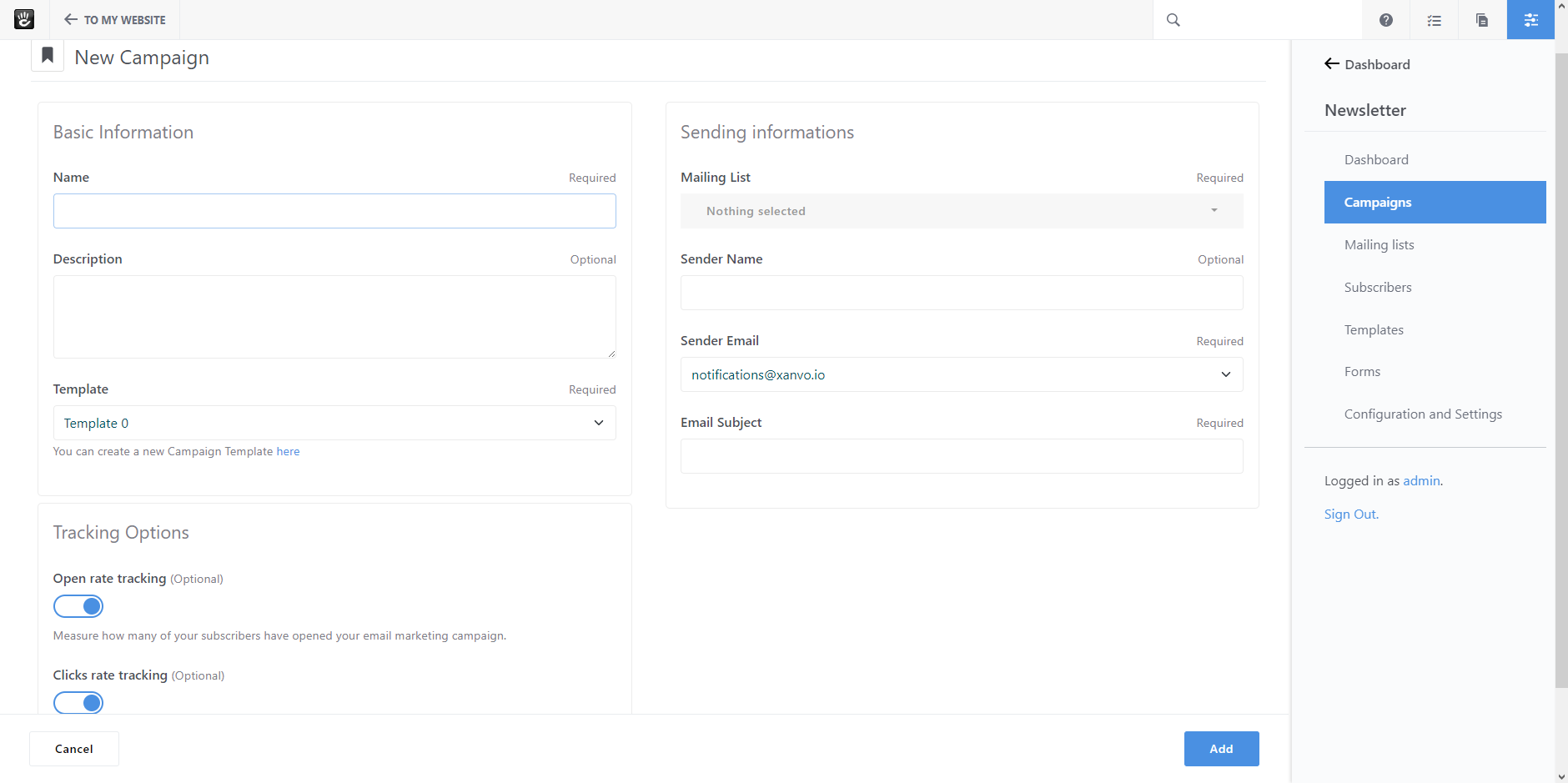
Basic Information:
Name your campaign and add a description if you would like.
Select the campaign template you want to use and fulfill your requirements.
Sending options:
Select target mailing list(s) to send to.
We will clean duplicate recipients that allow to remove email addresses that appear multiple times in your database, or when you combine multiple mailing lists for a single campaign.
Choose the sender email and sender name you would like to send your newsletters from. Your subscribers will be able to see both pieces of information so choose carefully. Often people use their company name and company email address.
A good starting point for any successful email marketing campaign is the subject line, which plays a crucial role in getting people to open and click your emails. Like the headline on your blog post, an email subject line has to get attention so people want to go further.
Tracking options:
When you create a new campaign, we enable certain tracking options by default. This includes open and click tracking.
Click 'Add', this will take you to the Page Editor, where you’ll design your email.
Design
Email design matters in any successful email marketing campaign. If your emails look terrible, that reflects badly on you, and can make people stop reading. With more people than ever reading emails on mobile devices, it’s important to use a responsive email template so your email resizes automatically whether people are reading it on a phone, tablet, or desktop.
Use the Concrete CMS Page Editor to make changes to your design.

To get the desired layout of your email, you'll need to insert multiple Blocks.
Drag & drop any Blocks you want to use from the Blocks right panel into your template.

Available Blocks:
Newsletter Content

This Block allows you to add text to your newsletter.

You can customize the text in many ways via the text editor toolbar.

Easily add personalized text (Placeholders) to your email campaigns by clicking on the “Newsletter Placeholder” dropdown and selecting the required placeholder.


If you add personalized content to a certain section of your email message like subscriber's full name, first name, last name and email, then Newsletter package automatically uses subscriber information in that section, if it exists for the subscriber receiving the email.

Newsletter Image

This Block lets you add images to your emails. You can easily choose from uploaded images as well as directly upload new images in your Concrete CMS site file manager.
Newsletter Page List

You can easily add your Concrete CMS site Pages to your campaign template.
Newsletter Event List

This Block enable you adding Events selected from your Concrete CMS site Calendars.
Newsletter Latest news

Add your site pages by selected Page Types
Newsletter Unsubscribe Links

Include an opt-out / unsubscribe link in your campaign email (required by law in some countries)
Newsletter Footer Links

Include site links in the footer, add your contact page, imprint page and social media links to the bottom of every email.
Newsletter Campaign Links

Activate a web page version of this campaign gives recipients another way to view an email if they're having issues.
Emails are only sent in the language that you write them in and aren't automatically translated. You can create mailing list and campaign to target a specific audience of your subscribers based on language.
Consider the campaign design your organization needs. If you are consistently creating the same design of campaigns, you should consider making those campaigns into templates. Templates are an easy way to speed up your campaign design process.
Send
As an email marketer, one of the worst, most stomach turning moments is realizing you sent an email out to thousands of subscribers with a mistake in it or left out a crucial piece of information or you send to the wrong mailing list.
That means testing everything: design and layout, subject lines and mailing lists. Consider testing emails with different test mailing lists and experimenting with email send times, too.
We recommend sending a test email of the campaign to yourself . This way, you can double-check your campaign and be 100% sure that it's ready to go to your contacts.
Click on 'Overview' button in the campaign toolbar menu to see an overview of the campaign.


While the Page Editor screen gives you a good indication of what your email will look like, it's good to check your email in the preview mode before sending. Preview mode also gives you a view of what your email will look like on a phone. You can activate the preview mode by click on 'Preview' button in the campaign toolbar menu.


To view which subscribers were included or excluded from the campaign , click subscriber number included in the campaign displays line.


Make note of the expected recipient count : this estimate removed duplicate emails, excluded subscribers, and suppressions.
Now that you’ve created your email, tested it, revised it, and double-checked everything, it’s finally time to send!
Click the send icon in the right.

This will start sending the campaign email to all mailing lists subscribers.
You’ll want to make sure that you’re sending at the most optimal time.
If you are sending a large number of emails it’s best to use the Rate limiting feature. This will send your message over a period of minutes/hours and will help protect your Sender Reputation.
After the campaign is start sending , you can see a real-time progress of the email's sending.

Your email can be stopped after it's sent. you have the option to 'Abort' sending for emails after they've begun sending.

You can measure the success of your email by opening the campaign overview and viewing the campaign details. Here you will see the statistics on how many people opened your email and clicked on the links.
Here’s some more information about Measure campaign performance.
Measure campaign performance
Finally, sending your email is just the first step in achieving email marketing success. To really nail it, you’ve got to collect data to improve future campaigns.
In a few days’ time, you’ll have enough data about the performance of your marketing campaign.
Analyze the results and find out how you did! Measure your actual performance against your goals and collected data to determine whether it was a success.

Newsletter package provides a comprehensive overview of campaign activity and performance.
The dashboard uses metrics such as email opens, clicks, sending statistics and more so that you can easily compare the performance of your emails.
|
Sent |
The percentage of sent email messages that have been sent successfully to a subscriber's inbox. (Total delivered / total sent ) * 100 |
|
Unique open rate |
The percentage of subscriber who opened one of your email campaign, where subscriber that open the same email campaign twice, only count as one. (Total unique opens / total sent ) * 100 |
|
Unique click rate |
The percentage of subscriber who opened and clicked a link in one of your email campaign, where subscribers that click more than one link in the same email campaign only count as one. (Total unique clicks / total sent) * 100 |
Campaigns List
A campaign is a marketing message that you share through email.
Newsletter package enables you to easily craft and send beautiful and engaging campaigns to keep your subscribers informed about your business or products...
Newsletter package offers many tools to manage your campaigns : from search and filter, to create and edit, to essentials actions like deletion, cloning, previewing and so on.
Newsletter package guides you through the process of managing ,creating and sending your email campaigns.

Campaigns are grouped according to status:
-
Draft: Campaigns that have not yet been sent and are scheduled to be sent later.
- Sent: Campaigns that have been sent.
-
In progress: Campaigns that are currently being sent.
-
Stopped: Campaigns that have been stopped and the send process has not completed.
-
Failed: Campaigns that have been failed in sending and the send process has not completed.
To search for campaigns, use the 'Search' bar at the top of campaign list.

Select the status of interest (for example, Draft) to display the associated list of campaigns.
To search for a campaign, enter a search term in the search field
You can use a previous campaign that you sent as a starting point. You can then change the campaign for your needs. When you copy it, we copies almost all the campaign's settings. After you make a copy, you'll want to open it and make sure you configure it for your current needs.

Make sure you rename the campaign

To delete the entire campaign record, click on the campaign toolbar menu and then click on the 'Delete' button.
